
Once all your vendors have successfully passed their identification checks, you have confirmation the vendors conveyancer has added the special conditions into the contract. You ready to take an offer.
When you have entered into negotiations with a buyer and are ready to request a deposit, locate and open the relevant workspace.
Click Create offer button
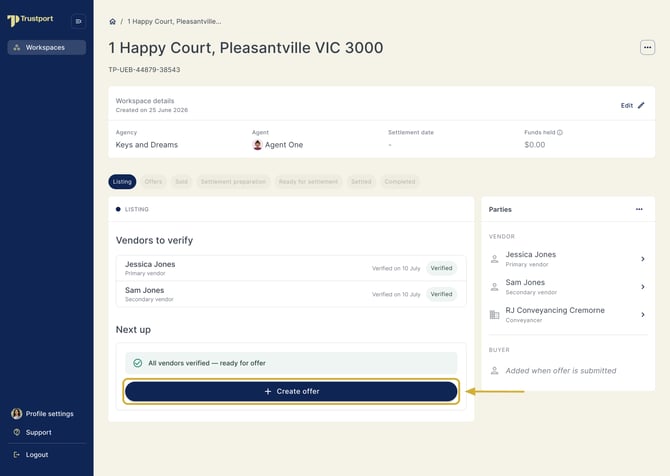
This will open a Create offer form.
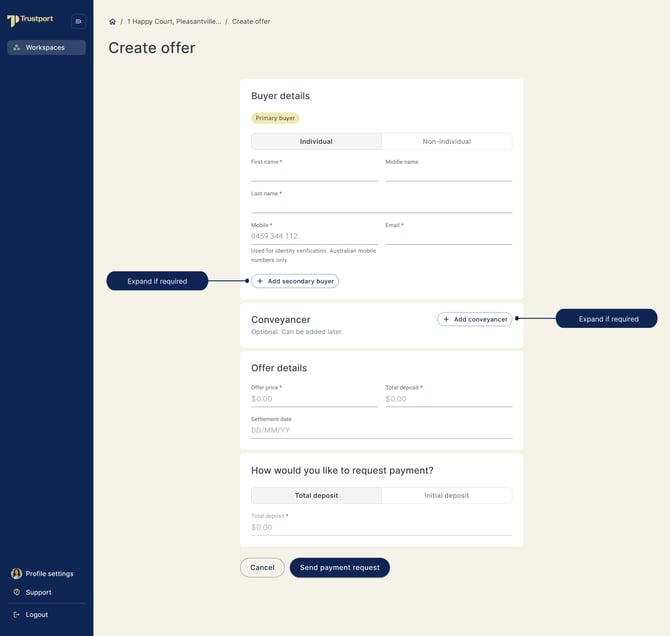
If there are two buyers, expand the Add secondary buyer button
It is highly recommended that you expand Add conveyancer and complete these details now - saves you work later.
When you are filling out the Offer details section make sure you add in the Total deposit - if you require to request the deposit in 2 parts, you can do this in the next section.
Tip: if you do not have a firm settlement date - add in a tentative one - you can always edit later
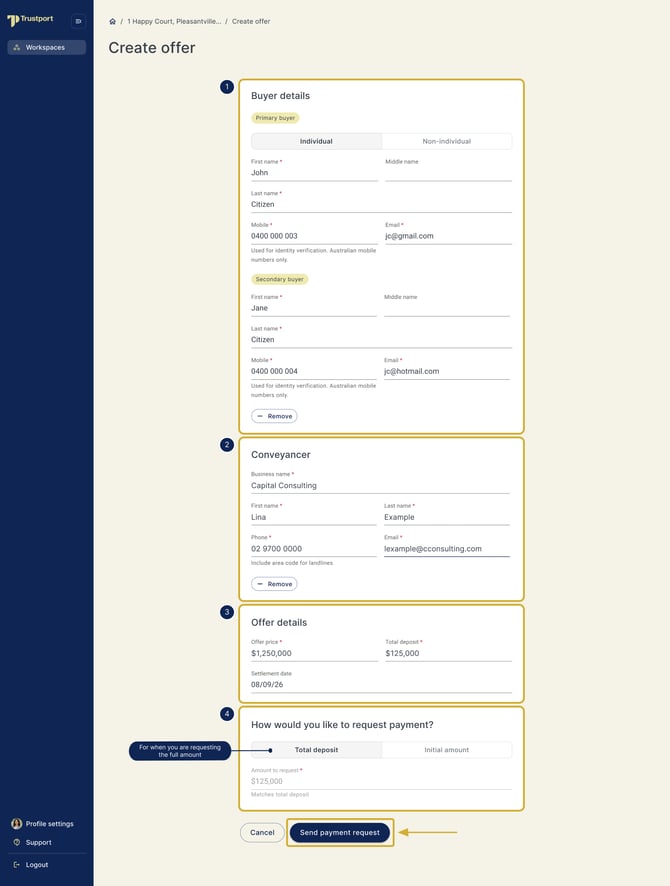
In the How would you like to request payment - you can toggle between Total deposit and Initial amount (see both example below)
Total Deposit example:
Initial Amount Example:
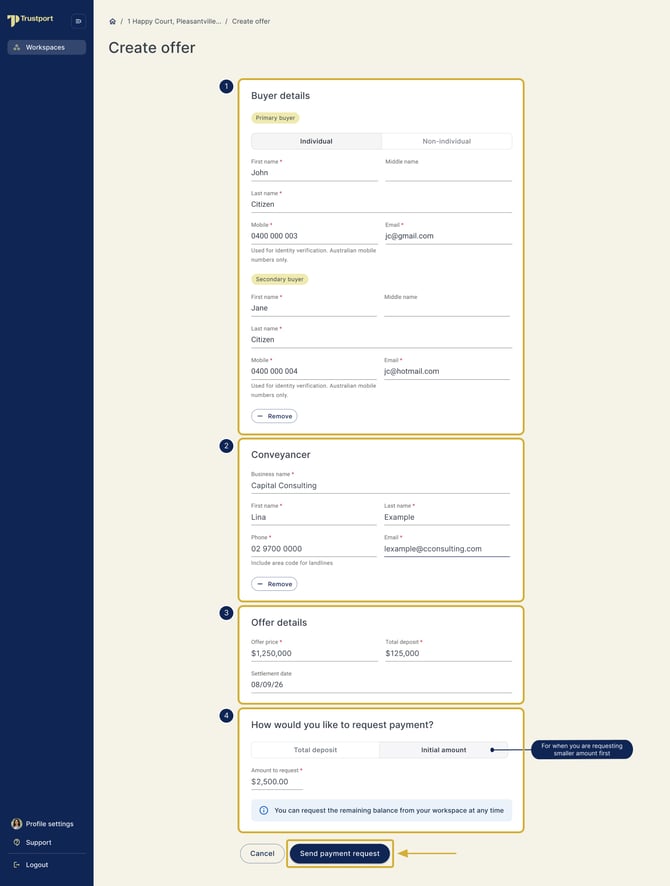
Once you are ready to initiate the payment request - Click Send payment request
This will automatically send out the payment request flow to the primary buyer, and if you have a secondary buyer they will concurrently receive a identification only request.
The screen will now show Payment request sent - with the date.
If you need to resend - Click the Resend button