
If a vendor or buyer hasn't received their invite, or isn't receiving the one time PIN, there may be a typo in their email address or mobile number. You can fix this from the workspace.
Important: Saving new details does not resend any invites. You'll need to resend the request afterwards.
Step 1: Select the vendor or buyer
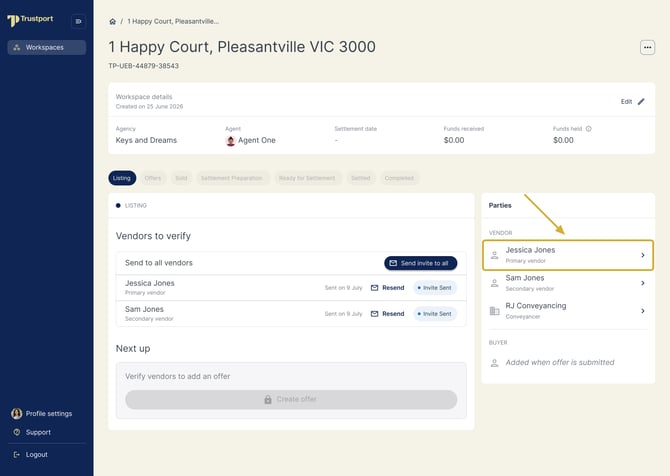
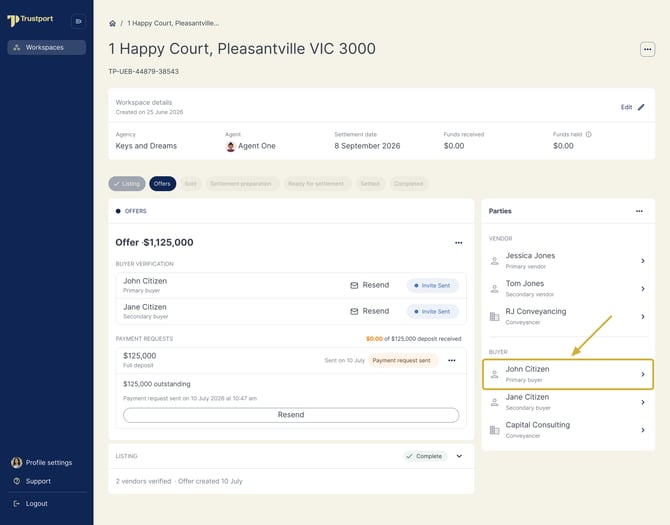
Open the relevant workspace. In the Parties section on the right hand side, select the vendor's or buyer's name.
Vendor's details:
Buyer's details
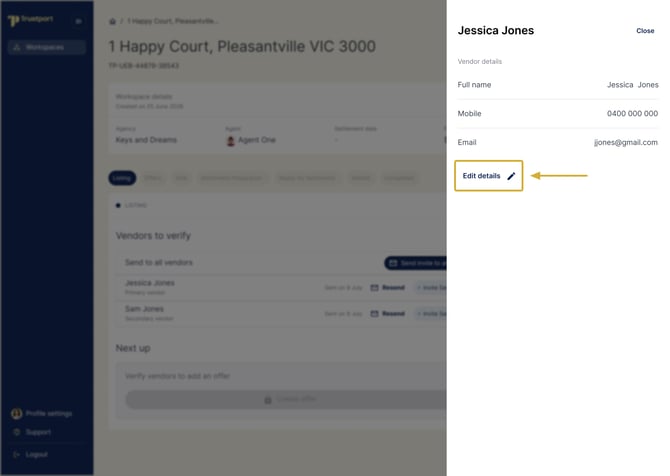
Step 2: Select Edit details
The vendor or buyer details section opens. Select Edit details to open the edit form.
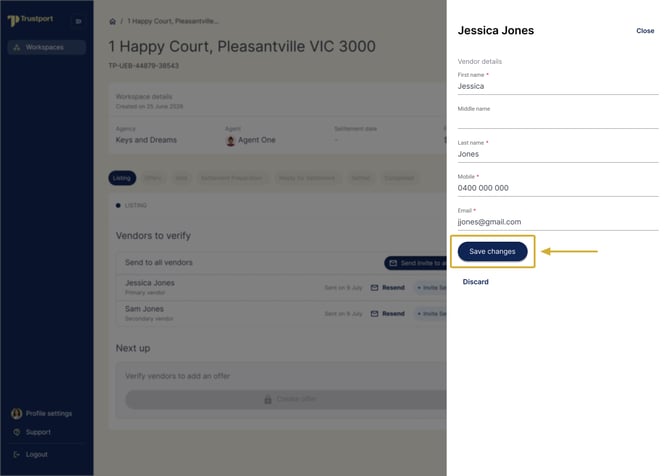
Step 3: Update and save the details
Correct the email address or mobile number, then select Save changes.
Step 4: Resend the request
Now that the details are correct, resend the request so it reaches the right person: