
Before you start, you'll need:
- The email address your Trustport invitation was sent to
- The password you created when you accepted your invitation
- Your mobile phone or authenticator app for verification
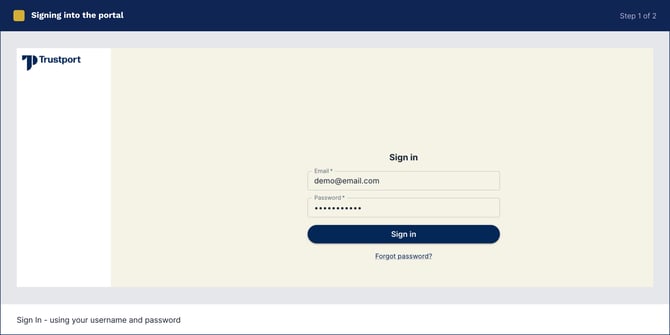
Step 1: Go to the portal and enter your login details
Open your browser and go to app.trustport.com
- Username: your email address
- Password: the password you set when you accepted your invitation
Select Sign in.
Step 3: Complete two-factor authentication
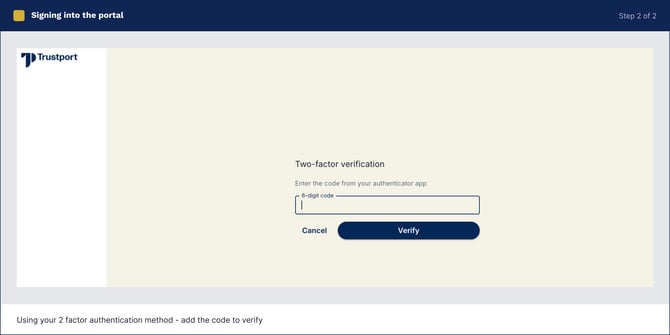
For your security, Trustport requires a verification code each time you log in.
Depending on the method you set up, you'll either:
- Receive a code by SMS to your registered mobile number, or
- Open your authenticator app to view your current code
Enter the code and select Verify.
Trouble logging in?
- Forgotten your password? Select Forgot password on the login page and follow the prompts to reset it.
- Code not arriving by SMS? Check that you have mobile reception and wait a few moments before requesting a new code.
- Authenticator code not accepted? Codes refresh every 30 seconds, so make sure you're using the current one.
- Still stuck? Contact the Trustport team at support@trustport.com for assistance.