
You can view or correct your risk assessment answers at any time. Each update is saved as a new version and your earlier answers are kept on the record.
Step 1: Open the risk assessment
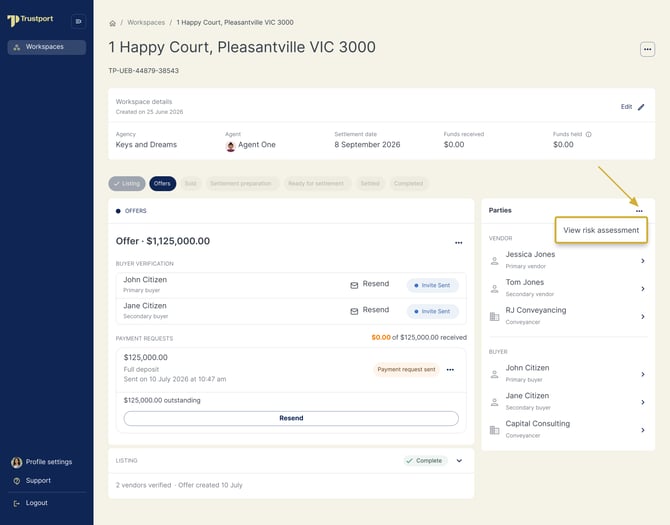
Open the workspace. In the Parties panel, select the three dots (⋯), then select View risk assessment.
Step 2: Review the answers
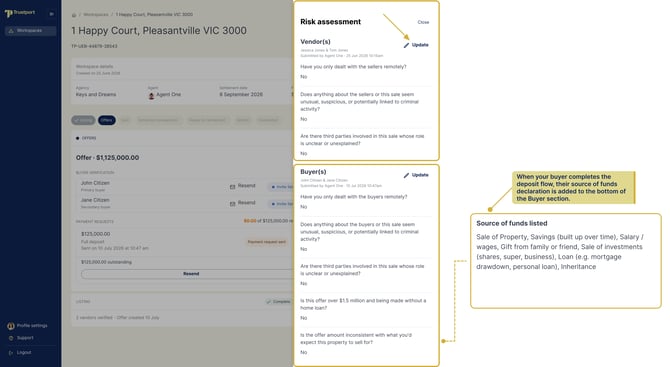
The Risk assessment panel opens. It shows the Vendor(s) section and, once an offer has been created, the Buyer(s) section. Each section shows who submitted the answers and when.
When your buyers complete their deposit payment, their source of funds declaration appears at the bottom of the Buyer(s) section.
Step 3: Select Update
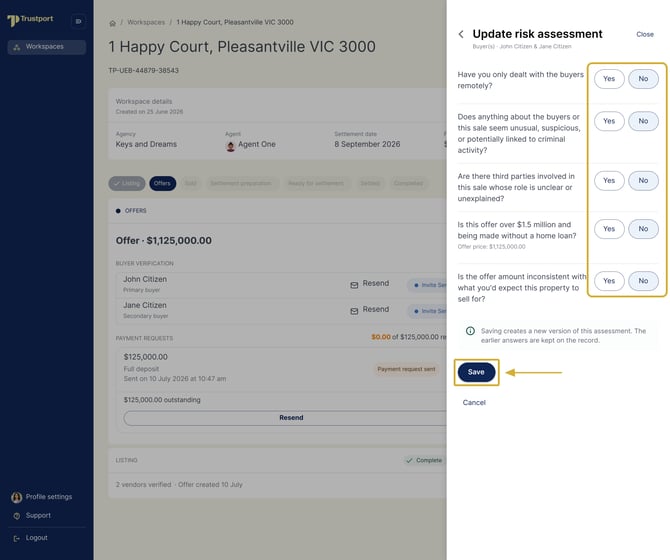
Select Update next to the section you want to change. The Update risk assessment panel opens with your current answers selected.
Step 4: Change your answers and save
Select Yes or No for any answer you want to change, then select Save. To leave without making changes, select Cancel.
What happens next
The panel shows your updated answers with your name and the date and time. Your earlier answers stay on the record.
If your update includes a Yes answer, our compliance team is notified and may contact you to understand a little more.
Good to know
Listing agents and their assistants, agency admins and principals can view risk assessments. Vendors, buyers and conveyancers can't see them.